
App keeps crashing on launch, and you cannot figure out why your emulator is completely frozen? Staring at an unresponsive Android Studio screen while project deadlines loom is a developer’s worst nightmare.
Fortunately, there is a built-in solution that gives you absolute control over your testing environment. Mastering the Android Debug Bridge (ADB) basics will transform how you build and fix apps.
This ADB commands guide covers everything you need to know. You will learn how to quickly install apps, extract bug reports, transfer files, and execute powerful terminal operations right from your computer. Let’s get started.
What is the Android Debug Bridge (ADB)?
ADB (Android Debug Bridge) is a highly versatile command-line tool that lets your computer communicate with an Android device. It acts as a literal bridge between your development machine and your hardware.
Using ADB, you can bypass the standard user interface completely. This allows you to run terminal commands to test software, debug crashes, and manage core system files without touching the phone’s screen.
How to Connect Your Device to ADB
Before you can run any commands, your computer and your phone must be able to talk to each other. Emulators are configured for this automatically, but physical hardware requires one quick setup step.
Enable USB Debugging First
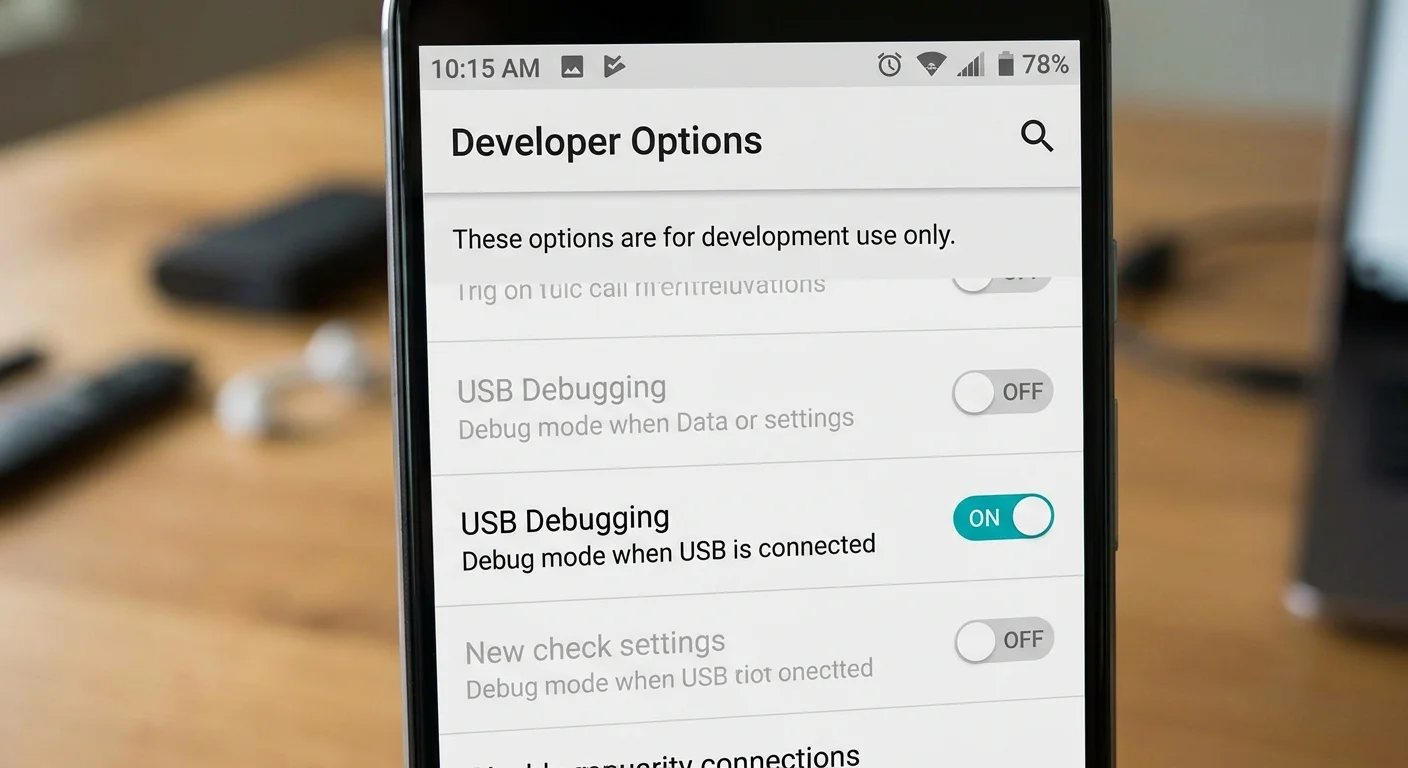
You must enable USB Debugging on your physical phone before using this command-line tool.
Navigate to Settings > Developer Options > USB Debugging and toggle it on. If you do not see Developer Options, go to “About Phone” and tap your “Build Number” seven times to reveal the menu.
Checking Device Connections
Whenever you plug in a device or start an emulator, verify that your computer actually recognizes it. Open your terminal and type:
adb devices- What it does: Lists all attached emulator and device instances.
- Understanding the Output States:
device: Success! The hardware is fully connected and ready to accept commands.unauthorized: The phone is physically connected, but you have not approved the pop-up prompt on its screen. Wake your phone up and tap “Allow USB Debugging.”offline: The hardware is connected, but the internal ADB daemon is not responding. This usually happens during a system reboot.no device: Your computer sees nothing. Try swapping out your USB cable.
For a more detailed view, use the extended list command:
adb devices -l- What it does: Displays extra device data, including product name, model, and device ID (e.g.,
device product:redfin model:Pixel_5). This is extremely helpful when managing multiple testing units at once.
Targeting Specific Devices (USB vs. Emulator)
If you have a physical phone and an emulator running simultaneously, standard commands will fail. The system will throw an error because it does not know which target to prioritize.
adb -d <command>- What it does: Forces the command to execute on the only connected physical USB device, ignoring any running emulators.
- Example:
adb -d shelldirectly opens a terminal on your physical smartphone.
Connect ADB Over Wi-Fi (Wireless Connections)
Left your USB cable at home? You can easily connect ADB over Wi-Fi using your local network. Find your phone’s IP address in your Wi-Fi settings first.
adb connect <device_ip_address>:5555- What it does: Establishes a wireless link between your computer and the hardware.
- Example:
adb connect 192.168.1.15:5555
adb disconnect <device_ip_address>:5555- What it does: Cuts the wireless connection to that specific IP address. Typing just
adb disconnectwill drop all active wireless sessions.
Managing the ADB Server Process
Connection pipelines can occasionally freeze, causing your terminal to hang indefinitely. Resetting the background server process fixes almost 90% of all connectivity issues.
adb kill-server- What it does: Instantly terminates the background server running on your computer.
adb start-server- What it does: Manually starts the background server. Simply running a standard command like
adb deviceswill also start it automatically if it is currently off.
💡 Troubleshooting Quick Fix Combo
If your machine suddenly drops the connection, run this three-step combo to flush the pipeline:
adb kill-server
adb start-server
adb devices
File Transfer Commands: Push and Pull
Moving assets between machines is a core part of Android development. You can transfer databases, images, and documents instantly using these two commands.
Pull (Phone ➡️ Computer):
adb pull -a <remote_phone_path> <local_computer_path>- Example:
adb pull -a /sdcard/Download/test.pdf C:\Users\Developer\Desktop - Note: Adding the
-aflag preserves the original file timestamps during the transfer.
Push (Computer ➡️ Phone):
adb push <local_computer_path> <remote_phone_path>- Example:
adb push C:\Users\Developer\Desktop\image.png /sdcard/Pictures/
App Management: Install APK Using ADB
Android Studio typically handles routine app installations. However, knowing how to install an APK using ADB is a massive time-saver when testing builds provided by your teammates.
adb install <path_to_apk_on_PC>- What it does: Pushes and installs a local APK file directly onto the connected hardware.
adb uninstall <package_name>- What it does: Removes the application from the device completely. You must use the exact package name (like
com.example.myapp), not the standard display name.
Finding Package Names and Force Stopping Apps
When you have hundreds of apps on a testing device, locating the exact package name can be tedious. You can list and filter them directly in the terminal.
adb shell pm list packages- What it does: Generates a text list of every single application currently installed on the hardware.
adb shell pm list packages | grep "google"- What it does: Filters that massive list to only show items containing the word “google”. If you use Windows Command Prompt, swap
grepwithfindstr.
adb shell am force-stop <package_name>- What it does: Instantly kills a misbehaving application. This is highly recommended when your code gets stuck in an infinite loop during testing.
Diagnostics and Debugging with ADB Logcat Commands
When software crashes, the Android OS automatically dumps an error report into a system log. Using ADB logcat commands is the most efficient way to figure out what went wrong.
adb logcat- What it does: Streams a continuous, live feed of all system background activity. It updates incredibly fast and contains a lot of data.
adb logcat -d- What it does: Dumps the currently stored log buffer to your screen and immediately exits the stream. This makes the data much easier to read at your own pace.
adb logcat > system_log.txt- What it does: Saves the entire log feed into a neat text file named
system_log.txton your computer. This file is perfect to attach to bug reports or share with senior developers.
adb logcat *:E- What it does: Filters the terminal output to only show Errors. This eliminates basic informational noise and highlights exactly why your code failed. You can easily swap
E(Error) withW(Warning),I(Info),D(Debug), orV(Verbose).
adb shell dumpsys- What it does: Generates highly detailed diagnostic reports regarding core system services, including battery health, memory usage, and Wi-Fi status.
Using the Interactive ADB Shell
Because the Android operating system is built on top of Linux, you can log directly into it. This allows you to treat your smartphone just like a standard Linux computer.
adb shell- What it does: Drops you into an interactive Linux terminal natively hosted on your Android hardware. Your prompt will normally change to a
$symbol.
From here, you can execute standard Linux operations like ls (list directories), cd (change folders), and rm (delete items) right inside the file system. When you are finished exploring, just type exit to return to your normal computer terminal.
Frequently Asked Questions (FAQs)
1. How do I fix the “adb device unauthorized” error? This error means your computer and phone are connected, but you haven’t granted security permissions. Wake up your phone screen, unplug the USB cable, and plug it back in. A prompt will appear asking to “Allow USB Debugging”—check the box to always allow from this computer, then tap OK.
2. How do I install an APK using ADB without overwriting data?
If you want to install an updated version of an app without losing your current testing data, use the -r flag. Running adb install -r <path_to_apk> will reinstall or upgrade the app while keeping your existing cache and saved preferences intact.
3. What does the adb kill-server command actually do?
The adb kill-server command terminates the background communication process running on your PC or Mac. Since ADB relies on a specific local port to send data to your phone, killing and restarting this server clears out software traffic jams and resets the connection.
📌 Full Course Playlist https://www.youtube.com/playlist?list=PLO1OrQEU0vHNmD9Xqzs-qXwzzwrDvdhVu
References
Official ADB Documentation: https://developer.android.com/tools/adb
~ ~ THANK YOU FOR READING ~ ~