
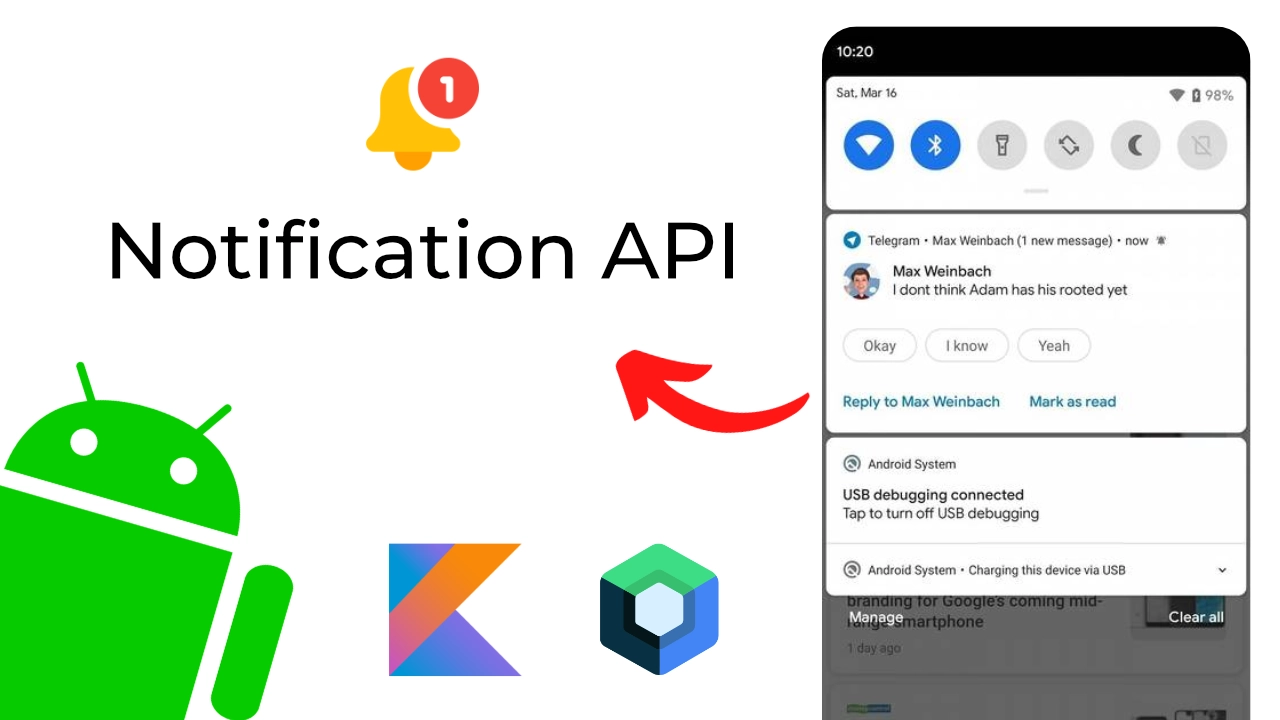
How to Create Android Notifications with Jetpack Compose & Kotlin
Are you looking to boost user engagement in your modern Android app? Mastering Android notifications using Jetpack Compose and Kotlin is one of the most effective ways to keep users coming back.
In this comprehensive tutorial, we will walk through the exact steps to create, build, and display local notifications to your users. We will also cover how to handle modern notification permissions so your app runs flawlessly on the latest Android versions.
Let’s dive into the code!
The 3 Pillars of the Android Notification API
Before we write any code, it is crucial to understand the three core concepts of the Android Notification API:
- Notification Channel: Introduced in Android 8.0, channels tell the system how to handle your notifications. This includes setting the ringtone, vibration patterns, and the default importance level (e.g., low, default, high).
- Notification Builder: The
NotificationCompat.Builderclass dictates exactly what your notification looks like. It holds your UI data: the notification icon, title, content text, and priority. - Notification Manager: A system service (
NotificationManager) responsible for actually showing the notification to the user or canceling it when it is no longer needed.
(Note: While developers often use the term “push notifications,” building them locally on the device without a server—like we are doing today—is technically called “local notifications.”)
Step 1: Add the Notification Permission (Android 13+)
By default, modern Android applications do not have permission to show notifications. Starting in Android 13 (API level 33), you must explicitly request the POST_NOTIFICATIONS permission.
First, open your AndroidManifest.xml file and add the following user permission tag:
<uses-permission android:name="android.permission.POST_NOTIFICATIONS" />We will handle the runtime permission request for this inside our Jetpack Compose UI later in the tutorial.
Step 2: Create a Notification Channel
To display a notification, you must register a notification channel with the system. You need a unique Channel ID, a human-readable name, a description, and an importance level.
Here is how you initialize a simple notification channel in Kotlin:
val channelId = "my_channel_id"
val channelName = "Demo Notifications"
val importance = NotificationManager.IMPORTANCE_DEFAULT

val channel = NotificationChannel(channelId, channelName, importance).apply {
    description = "Channel for app engagement notifications"
}

// Register the channel with the system
val notificationManager = context.getSystemService(Context.NOTIFICATION_SERVICE) as NotificationManager
notificationManager.createNotificationChannel(channel)
Important: Keep a note of your channelId. If you attempt to post a notification without a matching channel ID, the notification will fail to display silently.
Step 3: Build the Notification and PendingIntent
Next, we use NotificationCompat.Builder to design the notification.
We also want our app to open when the user taps the notification. To achieve this, we use a PendingIntent. A PendingIntent wraps a standard Intent, granting the Android system the right to execute it on your app’s behalf.
// 1. Create the Intent to open MainActivity
val intent = Intent(context, MainActivity::class.java).apply {
    flags = Intent.FLAG_ACTIVITY_NEW_TASK or Intent.FLAG_ACTIVITY_CLEAR_TASK
}

// 2. Wrap it in a PendingIntent
val pendingIntent = PendingIntent.getActivity(
    context,
    0,
    intent,
    PendingIntent.FLAG_IMMUTABLE
)

// 3. Build the Notification
val builder = NotificationCompat.Builder(context, "my_channel_id")
    .setSmallIcon(R.drawable.ic_notification) // Ensure you have this icon
    .setContentTitle("Demo Notification")
    .setContentText("Tap me to open the app!")
    .setPriority(NotificationCompat.PRIORITY_DEFAULT)
    .setContentIntent(pendingIntent) // Adds the tap action
    .setAutoCancel(true) // Removes notification when tapped
Step 4: Trigger the Notification with Jetpack Compose
Now let’s wire up the entire flow—including runtime permission checks—using Jetpack Compose.
We will create a simple screen with a button. When clicked, it checks if the app has notification permissions. If yes, it shows the notification via the NotificationManagerCompat. If not, it triggers the permission request dialogue.
@Composable
fun NotificationScreen(context: Context) {
    // Launcher to request POST_NOTIFICATIONS permission
    val permissionLauncher = rememberLauncherForActivityResult(
        contract = ActivityResultContracts.RequestPermission()
    ) { isGranted ->
        if (isGranted) {
            showNotification(context)
        }
    }

    Column(
        modifier = Modifier.fillMaxSize(),
        verticalArrangement = Arrangement.Center,
        horizontalAlignment = Alignment.CenterHorizontally
    ) {
        Button(onClick = {
            if (Build.VERSION.SDK_INT >= Build.VERSION_CODES.TIRAMISU) {
                val hasPermission = ContextCompat.checkSelfPermission(
                    context,
                    Manifest.permission.POST_NOTIFICATIONS
                ) == PackageManager.PERMISSION_GRANTED

                if (hasPermission) {
                    showNotification(context)
                } else {
                    permissionLauncher.launch(Manifest.permission.POST_NOTIFICATIONS)
                }
            } else {
                // Android 12 and below don't need runtime permission for this
                showNotification(context)
            }
        }) {
            Text("Show Notification")
        }
    }
}

fun showNotification(context: Context) {
    // (Insert Channel & Builder logic from previous steps here)

    // Display the notification
    with(NotificationManagerCompat.from(context)) {
        notify(1001, builder.build()) // 1001 is a unique Notification ID
    }
}
Testing the Application
When you debug the application and click the “Show Notification” button for the first time, Android will prompt you with a dialogue box asking to allow notifications.
Once granted, clicking the button again will trigger the tiny notification icon in your system tray. Pull down the notification drawer, and you will see your “Demo Notification.” Tap it, and it will flawlessly route you right back to your app’s home screen!
Frequently Asked Questions (FAQ)
What is the difference between local notifications and push notifications? Local notifications are triggered entirely locally from the device’s own code (like alarms or reminders). Push notifications are triggered remotely from a server (like Firebase Cloud Messaging) and sent over the internet to the device.
Why is my Android notification not showing up?
The most common reasons are: a missing or mismatched Notification Channel ID, missing the POST_NOTIFICATIONS permission in your manifest, or failing to request runtime permission on Android 13+.
Can I style notifications in Jetpack Compose?
The notification itself is built using standard Android APIs (NotificationCompat), not Compose UI. However, you can trigger and manage these standard notifications seamlessly from within your Jetpack Compose functions.
Do I need a Notification Channel for older Android versions?
Notification Channels are strictly required for Android 8.0 (API level 26) and higher. For older versions, the system simply ignores the channel code, but using the NotificationCompat library ensures backwards compatibility automatically.
Thank you for reading! If you got value out of this tutorial, be sure to share it with your fellow developers.
📌 Full Course Playlist https://www.youtube.com/playlist?list=PLO1OrQEU0vHNmD9Xqzs-qXwzzwrDvdhVu
~ ~ THANK YOU FOR READING ~ ~