
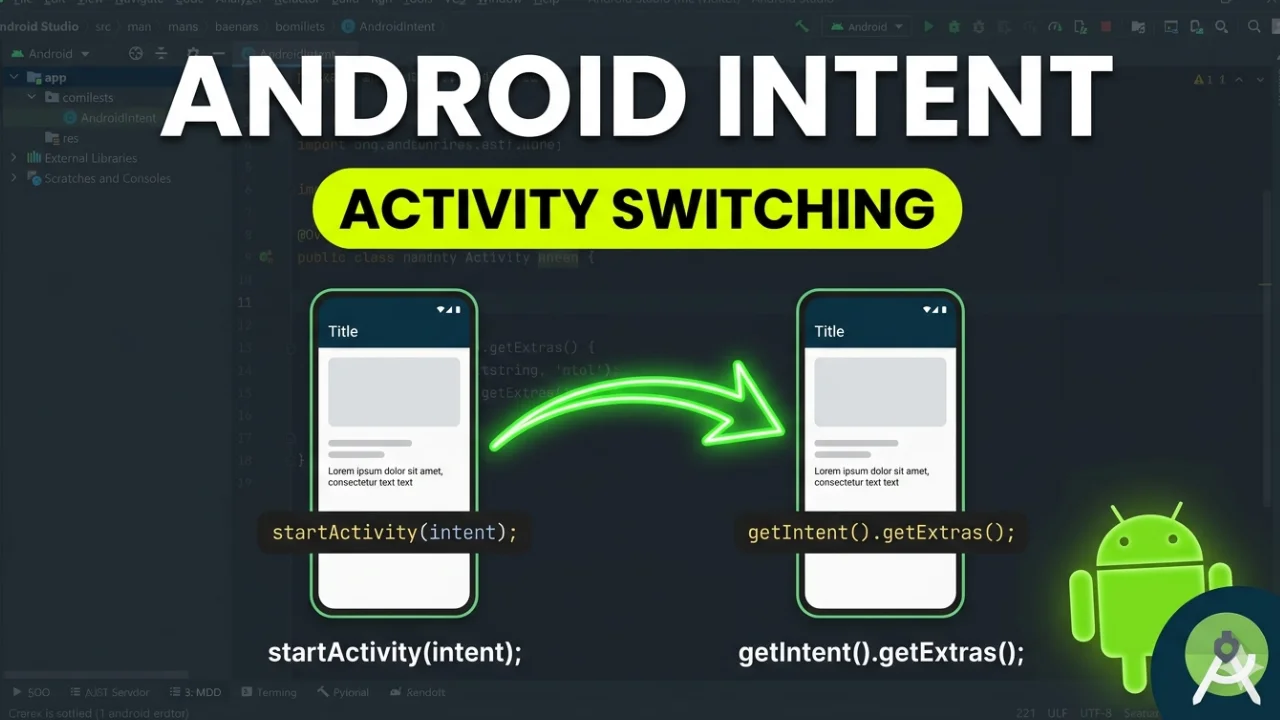
You’ve just built your first Android screen, but your app feels like a static postcard. You want to move the user to a profile page, open a web link, or send data from a login form to a dashboard.
Without a way to connect these screens, your app is just a collection of isolated files. If you try to force navigation without the right tools, you’ll face crashes and “Activity Not Found” errors.
The solution is Android Intents. Think of them as the glue that holds your entire Android application together.
What are Android Intents? (The Simplified Explanation)
In simple terms, an Intent is a messaging object you use to request an action from another app component.
Imagine an Intent as a digital envelope. Inside this envelope, you place:
- The Destination: Where you want to go.
- The Payload: Any extra data (like a username or ID) you want to carry along.
You hand this envelope to the Android System, and the system handles the heavy lifting of launching the next screen.
Explicit vs. Implicit Intents: Which One Should You Use?
Depending on whether you are staying inside your own app or talking to the rest of the phone, you will use one of two types of Intents.
| Feature | Explicit Intent | Implicit Intent |
|---|---|---|
| Target | A specific class name (e.g., ProfileActivity) | A general action (e.g., ACTION_VIEW) |
| Best Use Case | Navigating between screens inside your app | Interacting with other apps (Maps, Email, Browser) |
| Control | Complete control over which screen opens | The system/user chooses the best app |
| Kotlin Example | Intent(this, SecondActivity::class.java) | Intent(Intent.ACTION_VIEW, uri) |
How to Use Explicit Intents for Internal Navigation
An Explicit Intent is used when you know exactly which Activity you want to start. It is the most common way to handle navigation in Android Studio.
Passing Data Between Activities with putExtra()
To send data to the next screen, you use the putExtra() method. This adds a key-value pair to the “envelope.”
// Moving from MainActivity to SecondActivity
val intent = Intent(this, SecondActivity::class.java)
intent.putExtra("USER_NAME", "Alice") // "USER_NAME" is the key, "Alice" is the value
startActivity(intent)
How to Receive Data in the Target Activity
Once the second activity starts, you need to “open the envelope” to retrieve that data.
// Inside SecondActivity.kt
val receivedName = intent.getStringExtra("USER_NAME") ?: "Guest User"
// Now you can set this text to a TextView
textView.text = "Welcome, $receivedName!"
How to Use Implicit Intents for External Actions
Implicit Intents are powerful because they allow your app to leverage other apps already installed on the user’s device. You don’t name a specific class; instead, you declare an Action.
For example, if you want to open a website, you use ACTION_VIEW combined with a URI:
// Ask Android to open this link in the user's preferred browser
val websiteUri = "https://google.com".toUri()
val intent = Intent(Intent.ACTION_VIEW, websiteUri)
startActivity(intent)
The “Round Trip”: Getting Data Back with the ActivityResult API
Sometimes, you don’t just want to send a user away; you want them to pick something (like a photo from the gallery) and bring it back to the original screen.
The modern way to do this is using the ActivityResultLauncher.
1. Register the Listener in your MainActivity:
private val startForResult = registerForActivityResult(
    ActivityResultContracts.StartActivityForResult()
) { result ->
    if (result.resultCode == RESULT_OK) {
        val returnedData = result.data?.getStringExtra("MY_RESULT_KEY")
        // Update your UI with the returned data here
    }
}
2. Launch the Activity:
val intent = Intent(this, SecondActivity::class.java)
startForResult.launch(intent)
3. Send the Result back from SecondActivity:
val dataToReturn = Intent()
dataToReturn.putExtra("MY_RESULT_KEY", "Success! Data received.")
setResult(RESULT_OK, dataToReturn)
finish() // Closes SecondActivity and returns to MainActivity
Essential Step: Registering Activities in the Android Manifest
If you create a new Activity class but forget to tell Android it exists, your app will crash the moment you call startActivity().
Every Activity must be declared in your AndroidManifest.xml file:
<activity
    android:name=".SecondActivity"
    android:exported="false" />
Note: android:exported="false" ensures that other apps cannot launch this screen unless you explicitly allow it.
Android Intents FAQ
Q: What is the difference between an Intent and an Intent Filter? A: An Intent is a request to do something. An Intent Filter is a declaration in the Manifest that tells Android, “My app is capable of doing this specific action” (e.g., “My app can open PDF files”).
Q: Can I pass complex objects (like a User class) through Intents?
A: Yes, but the object must implement the Parcelable interface. For simple data, stick to Strings, Ints, and Booleans using putExtra().
Q: Why is my app crashing when I start an Implicit Intent?
A: This usually happens if no app on the device can handle the action. To prevent this, always check if there is an app available to handle the intent using resolveActivity() or wrap your call in a try-catch block.
📌 Full Course Playlist https://www.youtube.com/playlist?list=PLO1OrQEU0vHNmD9Xqzs-qXwzzwrDvdhVu
~ ~ THANK YOU FOR READING ~ ~