How to Recover Text Messages from a Broken Android Phone
We all know the terrible feeling. Your phone slips from your grasp, hits the pavement, and you hear an agonizing crunch. You pick it up, only to find a broken screen that is completely unresponsive or stuck on a terrifying black display.
Once the initial shock wears off, panic quickly sets in. Getting a replacement device is easy, but what about the invaluable data trapped inside that broken hardware? Losing crucial work messages, sentimental texts from loved ones, or your necessary two-factor authentication codes can be a massive headache. Without a working touchscreen, initiating a manual data transfer is practically impossible.
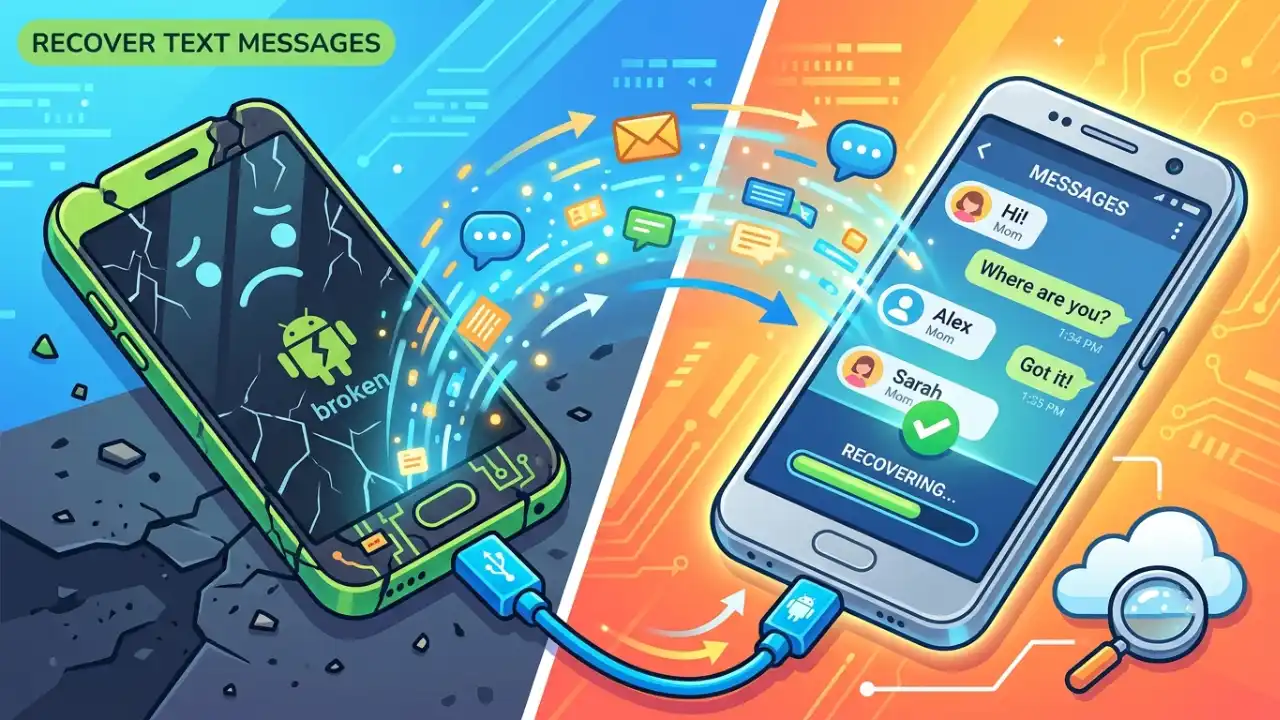
But take a deep breath. If you are frantically searching for how to recover text messages from broken phone android devices, there is good news. If you previously had an automated cloud backup system running, your texts are perfectly safe. Here is exactly how to retrieve messages from a broken phone using SMS Drive .
Why Cloud Backups Save Your SMS Data
Relying strictly on your phone’s local storage is a dangerous game. When your phone dies, your data dies with it.
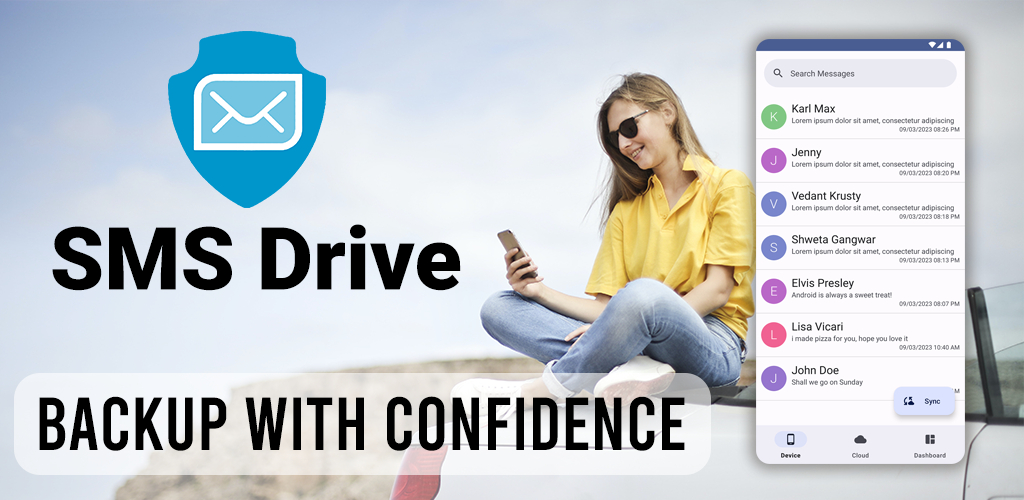
However, if you had an app like SMS Drive installed with its auto-backup feature enabled, your phone was quietly doing the heavy lifting in the background. SMS Drive provides unlimited, dedicated cloud storage strictly for your text messages.
This means your SMS database isn’t trapped on a damaged motherboard. Instead, your latest messages are securely synced to the cloud and protected with industry-standard encryption. Your texts are completely independent of your broken hardware.
Step-by-Step: How to Transfer Texts from a Broken Android
Because SMS Drive is built for seamless cross-device synchronization, you can easily transfer texts from a broken Android to a new phone in just a few taps. You don’t need messy cables, and you certainly do not need a functioning screen on your old device.
Follow this simple guide to transfer SMS to a new phone:
Step 1: Prepare Your Replacement Device
Power on your new Android smartphone and complete the standard initial setup. Make sure you insert your SIM card so your carrier can route your new calls and texts properly.
Step 2: Install SMS Drive
Open the Google Play Store on your new device and download SMS Drive - Backup & Restore . Remember, SMS Drive is designed as a companion app. You can safely keep Google Messages or Samsung Messages as your permanent, default SMS app.
Step 3: Log In Securely
Launch SMS Drive . To access your cloud storage, log in securely using your Email or Phone Number via OTP (One-Time Password). Be sure to use the exact same login credentials that you registered with on your broken device.
Step 4: Grant Permissions
The app will request standard Android permissions, such as Read/Write SMS and Contacts. These are strictly required so the app can write your backed-up texts into your new phone’s storage and match phone numbers to your saved contact names.
Step 5: Restore Your Messages
Once on the dashboard, you will see your available cloud backup file. Tap the “Restore” button.
Note: The Android operating system requires that a restore app temporarily be set as the “Default SMS App” to write messages to your database. SMS Drive will prompt you to allow this. Once the restore finishes, you can instantly switch back to your preferred everyday texting app.
Keeping Your Text Messages Safe Forever
Within minutes, SMS Drive’s advanced data compression will download your entire message history without draining your mobile data limits. You can open your normal text inbox to find every conversation sitting right where it belongs.
Accidents happen. While we cannot always protect our phones from gravity, we can absolutely protect our data. Once you successfully retrieve messages from a broken phone, open SMS Drive’s settings on your new device. Verify that your automatic backups are turned on so your data is always safe, no matter what happens tomorrow.
Frequently Asked Questions (FAQs)
Can I recover text messages from a broken phone without a backup? If your phone’s screen is completely broken and touch is unresponsive, recovering texts without a prior cloud backup is incredibly difficult. You would likely need to hire a professional data recovery service to extract data directly from the motherboard.
Do I need to keep SMS Drive as my default messaging app? No. SMS Drive is built as a backup companion. You only need to set it as your default SMS app temporarily during the restoration process. Afterward, you can switch right back to your favorite texting app.
Will restoring my backup consume a lot of mobile data? No. SMS Drive uses advanced data compression algorithms to ensure fast uploads and downloads. This secures your SMS backup and restore Android process while heavily conserving your mobile bandwidth.
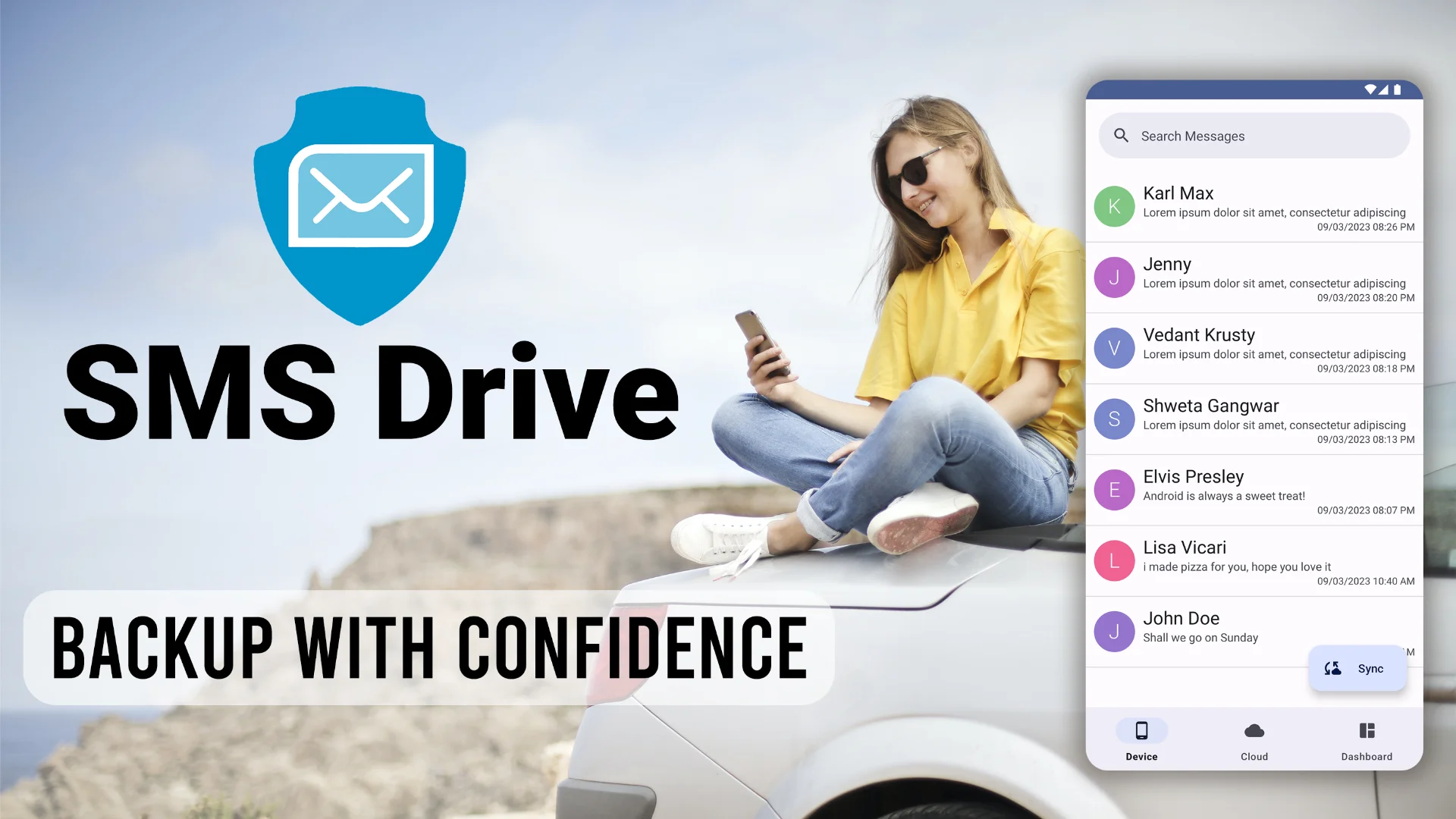
Get SMS Drive for Android:

👉 Download .APK File for Android
Official Website: 👉 https://deveshrx.com/apps/sms-drive
~ ~ THANK YOU FOR READING ~ ~