The Ultimate Guide to Android SMS Backup and Device Migration
You drop your phone on the pavement, and the screen goes completely black. Panic sets in—not just because of the broken hardware, but because of the data trapped inside.
Text messages are more than simple notifications; they act as a digital archive of precious memories, crucial business agreements, and your personal history. When a phone is lost, stolen, or damaged, those irreplaceable conversations often disappear with it.
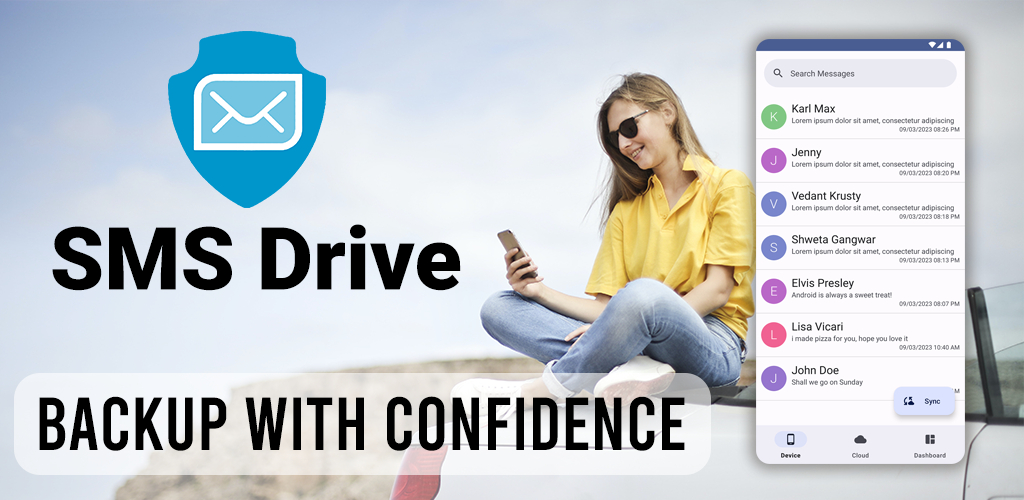
Fortunately, losing your texts is entirely preventable. By setting up a reliable Android SMS backup , you can secure your digital legacy and make upgrading to your next smartphone completely stress-free. Here is exactly how to do it using SMS Drive.
Why You Need an Automatic Text Message Backup
Most people wait until disaster strikes to think about their data. SMS Drive functions as a powerful companion to your default messaging app, running quietly in the background to keep your history safe.
Relying on manual backups leaves room for human error. To fix this, SMS Drive uses an auto-backup feature that runs daily. It constantly syncs your most recent conversations to the cloud without requiring you to lift a finger.
The app also utilizes strong data compression. This ensures fast uploads and incredibly low data bandwidth consumption on your monthly mobile plan.
Overcome Limits with Unlimited Cloud Storage
Running out of space is the number one reason people stop backing up their phones. SMS Drive completely eliminates this roadblock by providing unlimited cloud storage .
As your text history grows over the years, the app scales with you. There is always room for more data, meaning you never have to delete old, meaningful conversations just to free up space.
Protect Your Privacy with Encryption
When you save text messages on Android , privacy is non-negotiable. SMS Drive guarantees that your data features full encryption in transit as it moves from your device to the cloud servers.
The app only accesses your local data when you explicitly grant the READ_SMS permission. This ensures that your private conversations remain secure and strictly under your control.
How to Transfer SMS to a New Android Phone
Getting a new device is exciting, but migrating your data is usually a headache. Fortunately, SMS Drive acts as a secure bridge, helping you transfer SMS to a new Android phone seamlessly.
Because the app is fully compatible with devices running Android 8.0 all the way up to the latest Android 15, it works flawlessly across entirely different generations of hardware.
Step-by-Step SMS Migration Guide
Moving your messages does not have to be complicated. Follow these straightforward steps to safely restore messages on your brand-new device:
- Sync Your Old Device: Open SMS Drive on your current phone. Ensure your texts are backed up by triggering a manual sync or setting a custom sync interval .
- Log In on the New Phone: Download the app on your new device and simply log in using your phone number to access your cloud archives.
- Grant Restore Permissions: The app will ask for the
WRITE_SMSpermission. Approving this allows the app to safely write your backed-up threads directly into your new phone’s system storage. - Access Your Messages: Once the download finishes, your complete history will appear in your default messaging app. You can even set SMS Drive as your default SMS app if you prefer an all-in-one experience.
By implementing this simple routine, you guarantee that your digital memories survive every hardware upgrade.
Frequently Asked Questions (FAQs)
Can I backup my text messages to the cloud automatically? Yes. By using a dedicated companion app like SMS Drive, you can schedule daily, automatic backups. The app runs in the background and saves your new messages to the cloud without any manual input.
Will my SMS backup consume all my mobile data? No. A high-quality backup app uses advanced data compression. This shrinks the file sizes before uploading them to the cloud, ensuring very low data bandwidth consumption.
How do I transfer text messages from an old Android to a new one? The easiest method is to run an SMS Drive backup on your old phone. Once backed up, install the SMS Drive app on your new Android device, log in with your account, and hit “restore” to download your message history.
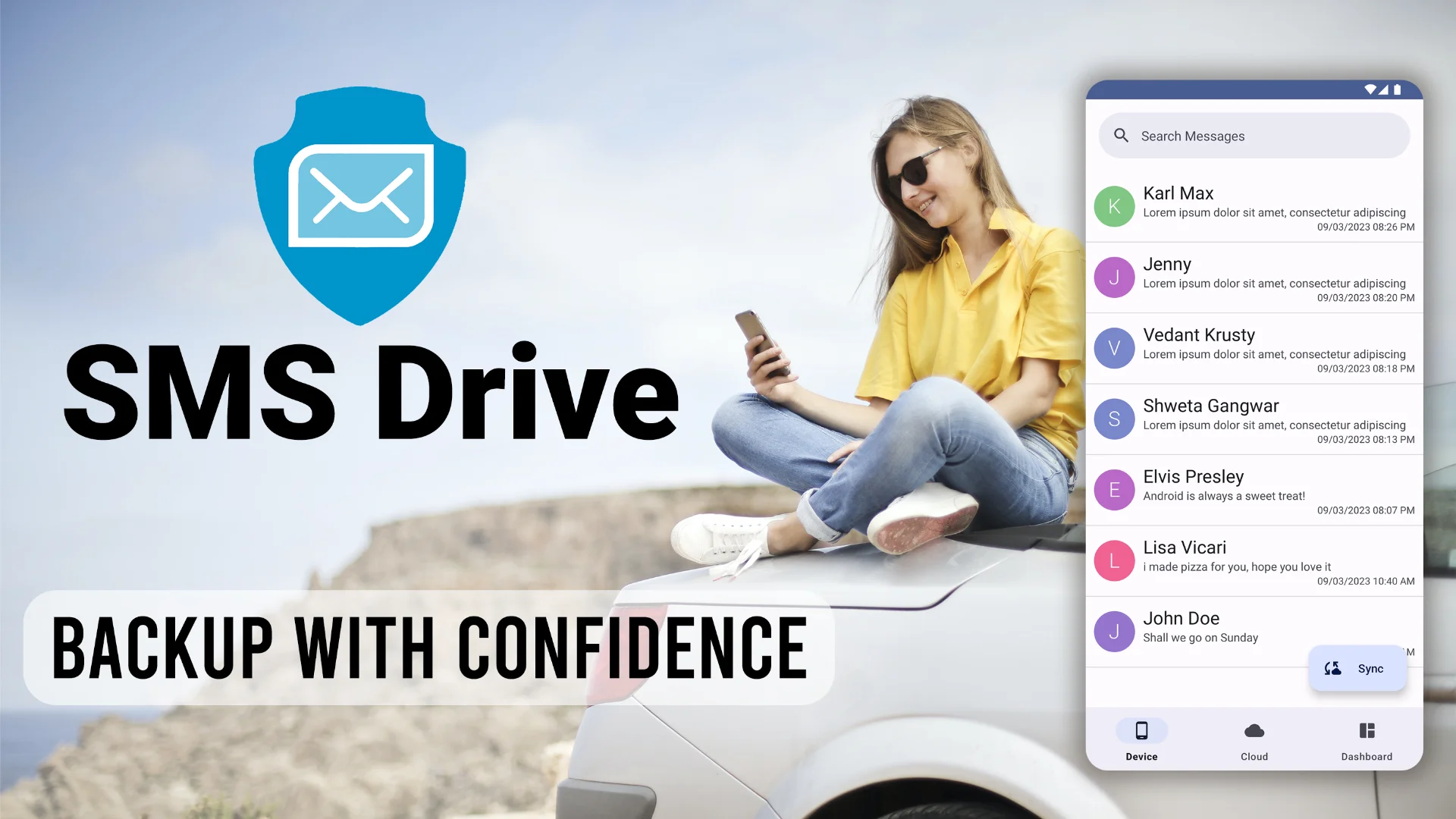
Get SMS Drive for Android:

👉 Download .APK File for Android
Official Website: 👉 https://deveshrx.com/apps/sms-drive
~ ~ THANK YOU FOR READING ~ ~