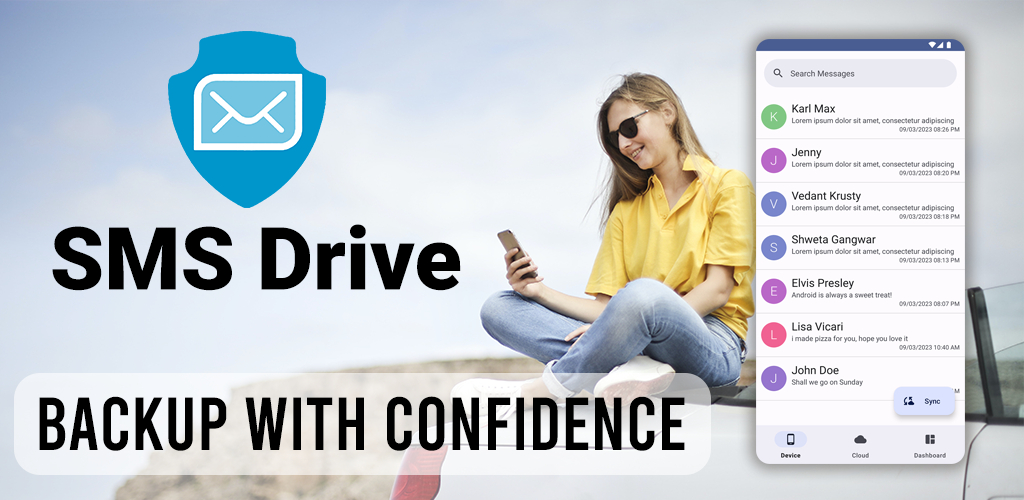
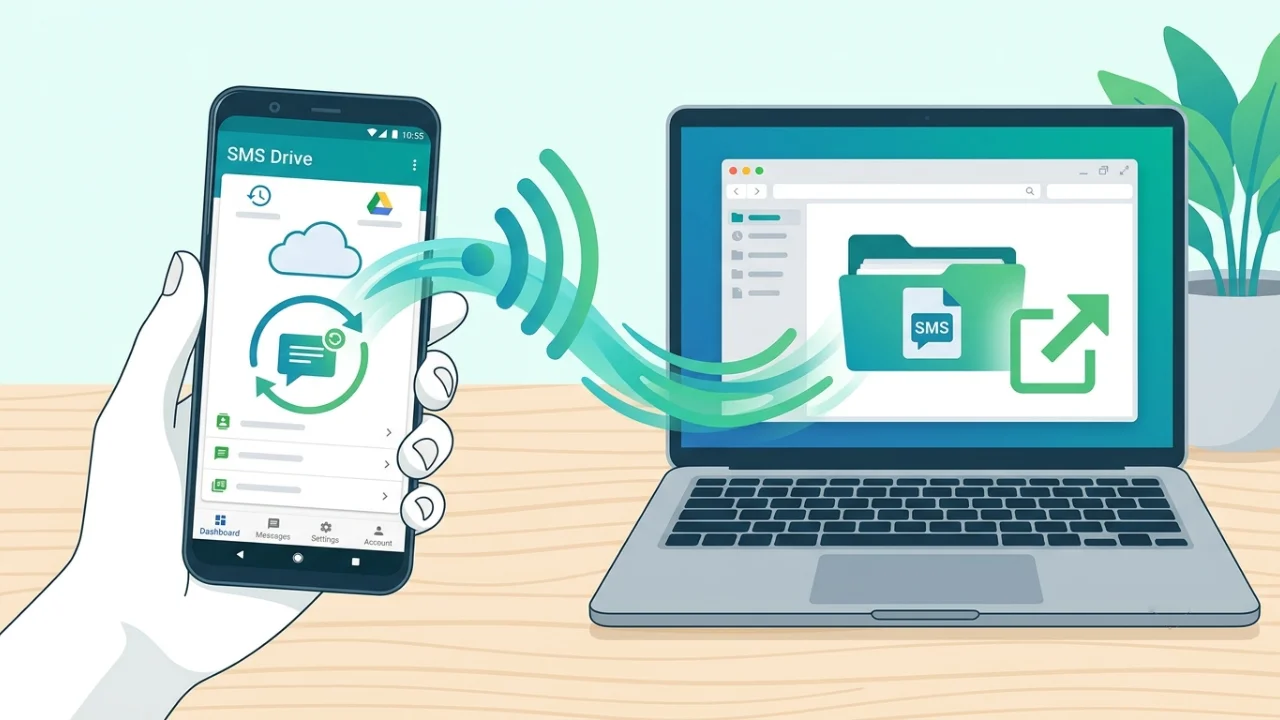
How to Backup Text Messages on Android to Cloud Storage
Ever lost your phone and suddenly realized your precious text messages are gone forever? It is a sinking feeling that happens far too often to Android users.
From sentimental messages from loved ones to critical two-factor authentication codes, your SMS history is a digital diary. When you rely solely on local storage, a single hardware failure or misplaced device wipes out years of important conversations. You are left completely stranded with no way to recover your data.
The easiest and safest solution is to backup text messages on Android to cloud storage. By using a dedicated cloud service, your messages stay secure, perfectly synced, and instantly accessible on any device.
Why Local SMS Backups Are Putting Your Data at Risk
Most Android users leave their text messages sitting vulnerable on a single device. Even if you use an SD card or basic internal backups, your data remains physically tied to your phone.
The hard truth about local storage:
- It consumes precious internal memory that could be used for apps or photos.
- Files vanish instantly if your phone is lost, stolen, or damaged.
- Native solutions rarely let you easily read your messages on a separate computer.
Cloud backup completely eliminates these risks. With a reliable Android SMS backup app , securing your digital conversations requires almost zero effort.
Local Storage vs. Cloud Backup: Which Is Better?
Understanding where your data lives is the first step to protecting it. Here is how local backups compare to a dedicated cloud solution like SMS Drive.
- Storage Space: Local backups eat up your phone’s memory. Cloud backup offers unlimited cloud storage dedicated entirely to SMS.
- Device Failure: A broken phone means a lost local backup. Cloud data remains completely safe and accessible anywhere.
- Cross-Device Access: Local data requires manual file transfers. Cloud systems provide instant cross-device sync across all your Android devices.
- Computer Accessibility: Local files are virtually impossible to read on a PC. Cloud apps let you instantly export SMS to easily readable formats.
- Automation: Local backups are easy to forget. Cloud solutions run silently in the background on a scheduled auto-backup routine.
Step-by-Step: How to Backup Text Messages on Android to Cloud
Protecting your conversations is easier than you think. Follow these exact steps to secure your messages in minutes.
Step 1: Download an Android SMS Backup App
Open the Google Play Store on your device. Search for SMS Drive - Backup & Restore and download the application.
Step 2: Sign In and Grant Permissions
Open the app and log in securely using your phone number via OTP. You will then need to grant a few basic permissions.
Allowing “Read/Write SMS” and “Read Contacts” ensures the app can accurately save your messages and display sender names. Your data is encrypted and these permissions operate strictly for backup functionality.
Step 3: Run Your First Cloud Backup
Navigate to the main dashboard and tap the Backup button. SMS Drive will instantly compress and upload your local database to your secure cloud storage.
Depending on how many messages you have, this first process might take a few minutes. All future backups will be incremental and lightning-fast.
Step 4: Automate with Auto-Backup
Never worry about manually saving your texts again. Go to Settings and turn on the Auto-Backup feature .
Once enabled, your latest messages will automatically sync in the background. You can literally set it and forget it.
Step 5: Restore to a New Android Phone
Upgrading your device or performing a factory reset? Simply install SMS Drive on your new phone and log in with your account.
Tap the Restore button on the dashboard. Within minutes, you will restore text messages on Android . Exactly as they appeared on your old device.
Why SMS Drive is the Best Companion for Android Users
Not all backup tools are created equal. SMS Drive offers specific advantages tailored for users who value both practicality and sentimentality.
Unlimited Cloud Storage for SMS
Most cloud drives force your text messages to compete with massive photo and video files for limited space. SMS Drive fixes this by providing unlimited SMS cloud backup . You will never have to delete old threads just to free up room again.
Keep Your Default Messaging App
You do not need to abandon your favorite texting interface to stay secure. SMS Drive functions purely as a background companion. Keep using Google Messages or Samsung Messages—you only set SMS Drive as your default SMS app temporarily during the restore process.
Export and Read Texts on Your Computer
Sometimes you need to save text messages to a computer for legal records, printing, or safekeeping. SMS Drive allows you to export any thread seamlessly. Choose from plain Text (.txt), formatted HTML (.html), or structured JSON (.json) files to read your messages on any Mac or PC.
Frequently Asked Questions (FAQs)
How do I transfer text messages to a new Android phone? Install SMS Drive on your old phone and tap Backup to save your texts to the cloud. Download the app on your new phone, log in, and tap Restore to transfer everything over.
Does SMS Drive use a lot of mobile data to backup? No. The app uses advanced data compression algorithms. This ensures fast uploads and downloads while using very minimal mobile data.
Are my backed-up text messages secure in the cloud? Yes. Your data is strictly encrypted in transit using industry-standard security protocols. This ensures your privacy and protects your data from unauthorized access.
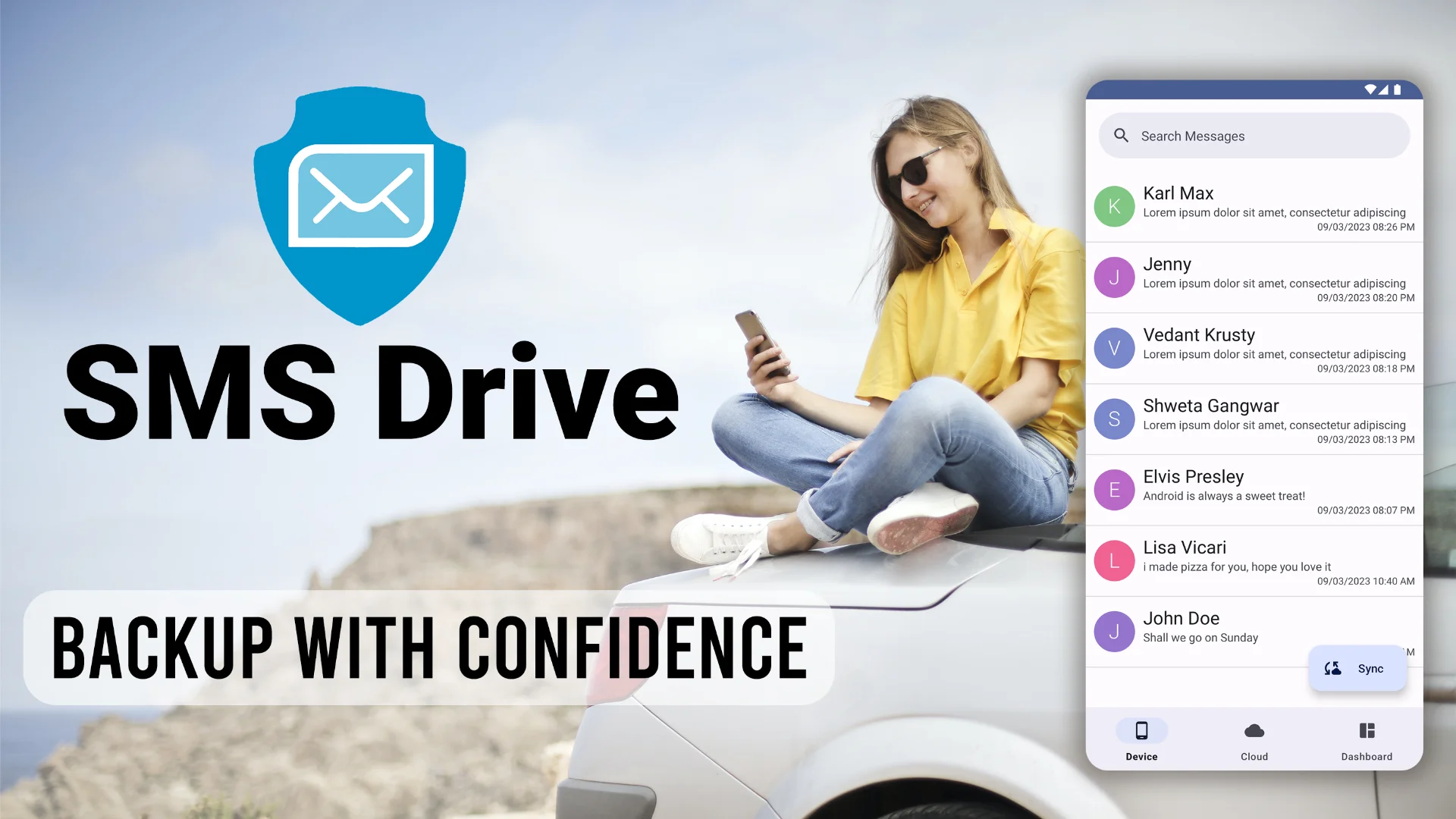
Get SMS Drive for Android:

👉 Download .APK File for Android
Official Website: 👉 https://deveshrx.com/apps/sms-drive
~ ~ THANK YOU FOR READING ~ ~