You just switched to a new Android phone, logged into your Google account, and waited for your text messages to appear. They never did.
You assumed your data was safe, but now you are staring at an empty inbox. Millions of users trust Google to protect their conversations, only to discover their Google Drive SMS backup not working when they need it most.
The short answer? Yes, Google Drive can save your text messages. But it is far from a reliable vault. It frequently overwrites old files, crashes during restores, and shares space with your heavy photo albums.
Fortunately, there is a permanent fix. Here is exactly why your Android SMS backup is missing and how you can protect your text messages for good.
Does Google Drive Actually Back Up Your SMS?
Yes, but with serious strings attached.
When you enable Google One backup on your Android device, the system captures your app data, contacts, call history, and SMS messages. It sounds great on paper. The problem lies in how Google manages that data behind the scenes.
Here is what most Android users do not realize about Google’s built-in system:
- Backups are stored as an encrypted blob. You cannot open them, preview them, or check if your latest texts are actually inside.
- SMS is bundled with everything else. If your phone backup fails due to a large video file or a bad connection, your messages fail right alongside it.
- Older backups get deleted automatically. Google only keeps the most recent backup for your device. If your phone runs a backup while glitching, your history is gone permanently.
So, while Google Drive does save text messages, it gives you almost no visibility and zero control over your own data.
4 Reasons Your Google Drive SMS Backup Is Not Working
If you have missing messages after trying to recover text messages on Android , you are not alone. These are the four most common culprits behind Google’s backup failures.
1. Old Backups Get Overwritten Without Warning
Google keeps a single backup file per device. Whenever a new backup runs, it deletes the previous one. If a fresh backup process crashes halfway through, it can still overwrite your perfectly good older file. This leaves you with an incomplete backup and missing conversations.
2. Silent or Incomplete Restores
During a new device setup, the device setup wizard asks if you want to restore your data. If you skip this prompt, or if your Wi-Fi drops for a second, your messages will not transfer. Even worse, successful restores often drop older texts because Google’s backup can lag months behind your actual inbox.
3. Google Storage Quota Limits
Every Android backup eats into your shared cloud storage quota—the exact same 15 GB holding your heavy Gmail attachments and Google Photos. Once that storage fills up, backups stop completely. Most users only discover this storage cap after they lose their messages.
4. No Option to Preview or Export SMS
You cannot open a Google Drive backup to verify your messages are safe. You also cannot move a conversation to your computer. Relying on a system where you cannot see your own data requires a level of blind trust that usually ends in lost texts.
The Best Fix: Use a Dedicated SMS Backup App
The easiest way to stop worrying about broken cloud backups is to stop relying on Google for your text messages. This is why dedicated SMS backup apps exist.
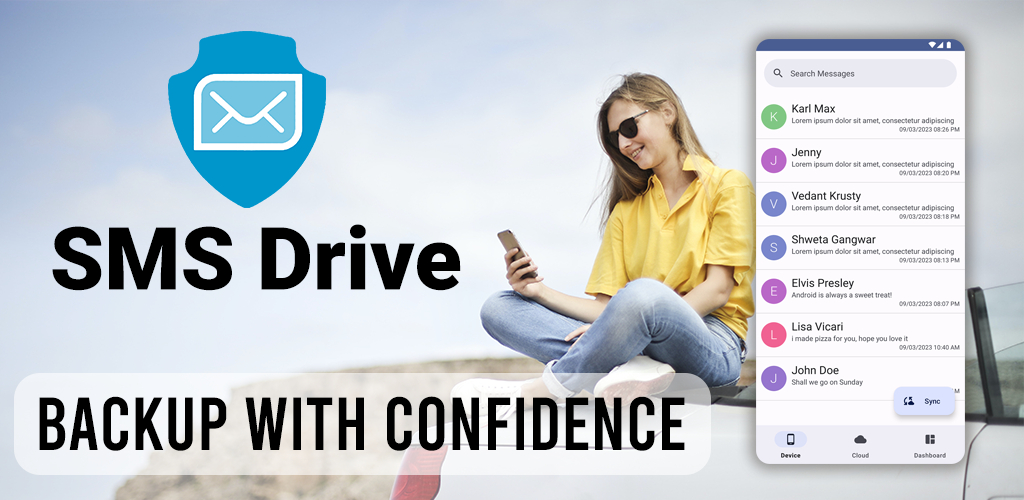
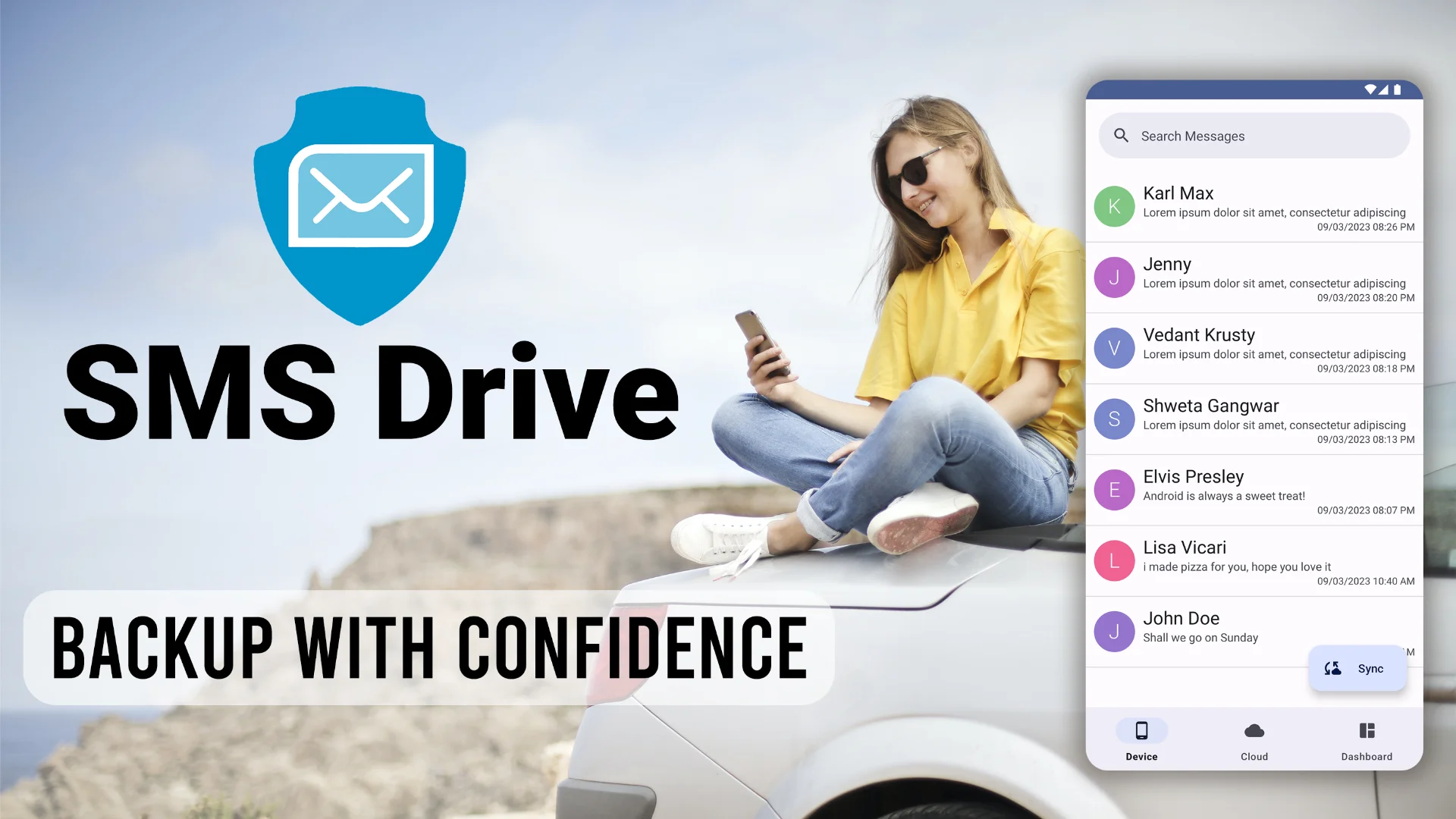
SMS Drive is built to do exactly one thing flawlessly: back up and restore your text messages. It runs independently of your Google storage and never deletes your old history.
Here is what makes SMS Drive the superior alternative:
- Unlimited cloud storage. The space is strictly for your SMS. You never have to worry about a 15 GB ceiling or quota errors.
- One-tap restore. Forget digging through system settings. You can restore SMS with a single button press.
- Automatic scheduling. Your newest messages are secured silently in the background on your preferred schedule.
- Export SMS to TXT, HTML, or JSON. Read your conversations on your laptop, or print them out for safe keeping.
- Companion functionality. You do not need to change your messaging habits. Keep using Google Messages or Samsung Messages—SMS Drive simply runs as a safety net in the background.
How to Secure Your Text Messages in 5 Minutes
Fixing your backup problem takes just a few simple steps:
- Install SMS Drive from the Google Play Store .
- Log in securely using your phone number via OTP.
- Grant permissions so the app can read your texts and attach the proper contact names to them.
- Tap Backup. Your entire SMS database will immediately upload to a secure, dedicated cloud.
- Switching phones? Just install the app on your new device, log in, and tap Restore .
SMS Drive vs. Google Drive: Which is Better for Messages?
| Feature | Google Drive Backup | SMS Drive |
|---|---|---|
| Storage Limit | Shared 15 GB quota | Unlimited, SMS-only |
| Data Visibility | Hidden, no preview | Full control, view anytime |
| Restore Process | Tied to initial device setup | One-tap, on-demand |
| Data Safety | Older backups overwritten | Full history stays intact |
| Export Options | None | TXT, HTML, JSON |
If your conversations matter to you, the choice is obvious. Google Drive is a convenient gamble, but a dedicated app guarantees your data is exactly where you left it.
Your next move: Stop gambling with your text messages. Download SMS Drive - Backup & Restore today, run your first manual backup, and never lose a text again.
Have you ever lost your messages during a phone upgrade? Share your experience in the comments below!
Frequently Asked Questions (FAQs)
Where are my text messages backed up on Google Drive?
Google Drive hides your text message backups. You can see the backup file by opening the Google Drive app, tapping the menu, and selecting “Backups.” However, you cannot open this file, read the messages, or extract them individually.
Why did my text messages not transfer to my new Android phone?
Your messages likely didn’t transfer because your Google Drive storage was full, the backup was interrupted, or you skipped the restore step during the initial phone setup. Google also frequently fails to transfer MMS (picture messages) depending on your carrier.
How do I restore text messages from Google Drive?
To restore messages natively from Google Drive, you must factory reset your phone and choose the “Restore from Backup” option during the initial setup wizard. For a much easier method that doesn’t require resetting your phone, use a third-party app like SMS Drive.
Get SMS Drive for Android:

👉 Download .APK File for Android
Official Website: 👉 https://deveshrx.com/apps/sms-drive
~ ~ THANK YOU FOR READING ~ ~