Tired of being limited to apps on the Google Play Store? Want the freedom to install apps from alternative sources? This tutorial will guide you through installing .apk files on your Android phone – giving you access to a world of apps!
What is an APK file? An APK (Android Package Kit) file is essentially the installation file for Android apps. It’s like a setup file for Windows, allowing you to install apps directly on your device.
We’ll be using a powerful tool called ADB (Android Debug Bridge), a standard tool for Android developers that allows us to sideload apps directly onto our devices via USB. It’s a more robust and preferred method compared to the traditional “copy and install” approach.
What you’ll need:
- An
.apkfile of the app you want to install (downloaded from a trusted source – we’ll discuss where to find them!) - The Android SDK Platform Tools (containing ADB)
- A USB cable to connect your phone to your computer.
- (Recommended) Windows Terminal - It’s easier to use than Command Prompt!
Important Note: Always download .apk files from trusted sources like F-Droid, the GitHub repository of the app developer, or the official app website. Downloading from untrustworthy sites can expose your device to malware and security risks.
Step 1: Obtaining the APK File
Where do you find these awesome apps outside of the Play Store? Here are a few great places:
- F-Droid: A popular repository for open-source Android apps, known for its privacy-focused approach.
- GitHub: Many developers host their apps on GitHub. Search for the app you want and look for a download link in the repository.
- Official App Website: The official website of the app developer is often the best place to get the latest version of the
.apkfile.
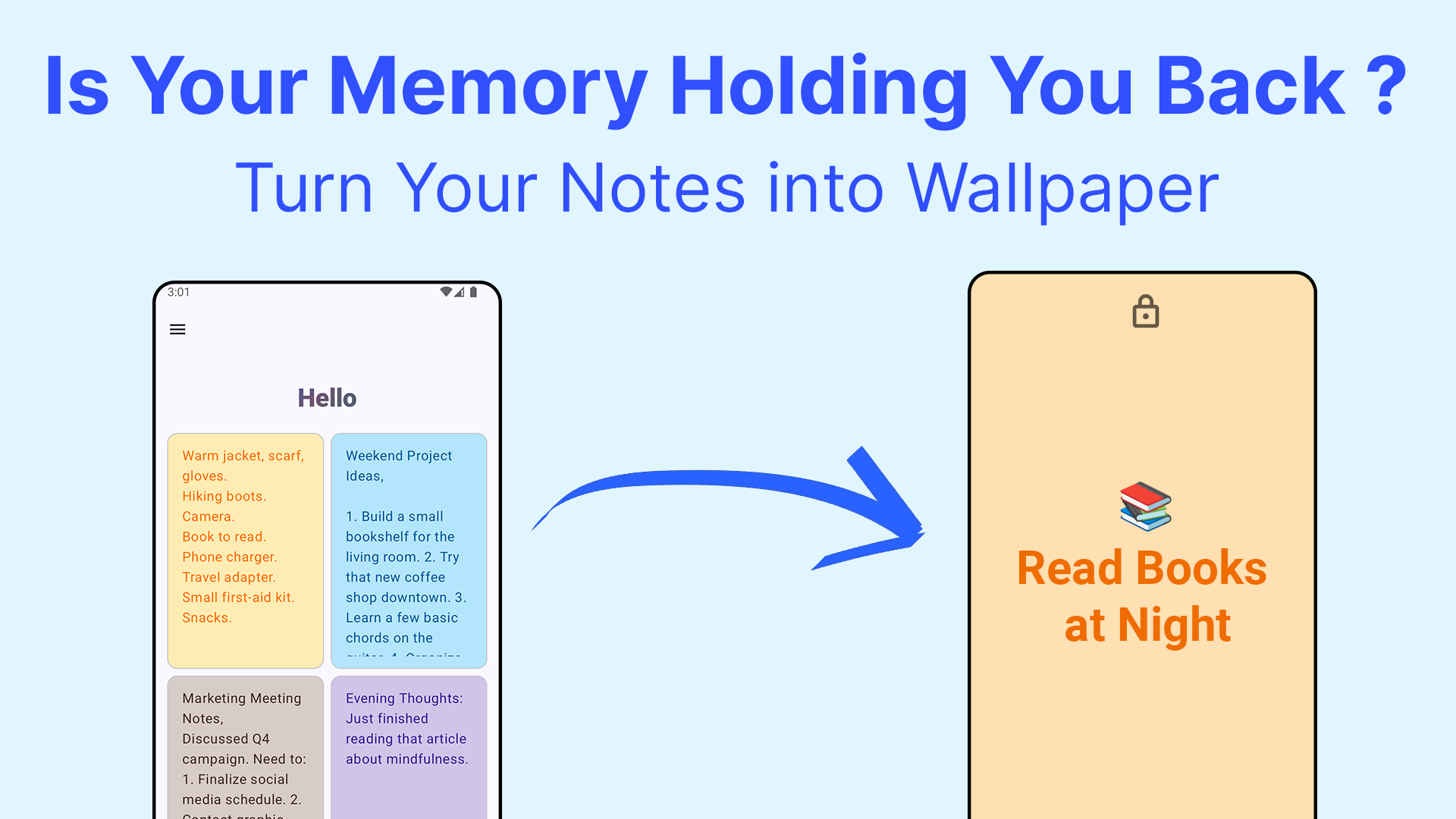
For this tutorial, we’ll be using the Notes on Screen App APK file as an example.
Step 2: Downloading and Setting Up ADB
- Download Platform Tools: Go to the official Android Developers website and download the “Platform-tools” zip file: https://developer.android.com/studio/releases/platform-tools
- Extract the Files: Extract the contents of the downloaded zip file to a folder on your computer (e.g.,
C:\platform-tools). - Open Windows Terminal: Open Windows Terminal (available in the Microsoft Store).
- Navigate to the ADB Folder: In the terminal, use the
cdcommand to navigate to the folder where you extracted Platform Tools. For example:cd C:\platform-tools.
You can verify that ADB is working by simply typing adb and pressing Enter in the terminal. If it displays a list of commands, everything is set up correctly!
Step 3: Enabling USB Debugging & Installing the App
-
Enable Developer Options: On your Android phone:
- Open Settings.
- Scroll down to About Phone (or About Device).
- Find the Build Number and tap it repeatedly (usually 7 times) until you see a message saying “You are now a developer!”.
-
Enable USB Debugging:
- Go back to Settings, then navigate to System -> Developer Options.
- Scroll down and enable the USB debugging option.
-
Connect Your Phone: Connect your Android phone to your computer using a USB cable. You may be prompted on your phone to authorize USB debugging – allow it!
-
Install the APK: In the Windows Terminal (still in the ADB folder), type the following command and press Enter:
adb install <name_of_your_apk_file>.apkReplace
<name_of_your_apk_file>.apkwith the actual name of the downloaded file. -
Success! If the installation is successful, you’ll see a “Success” message in the terminal. Your Telegram app is now installed on your Android device!
That’s it!
Congratulations! You have successfully installed an app on your Android phone using ADB.
You can repeat this process for any other .apk file you find from a trusted source. This gives you complete control over the apps you install, unlocking a whole new world of possibilities on your Android phone!
Note: The process may vary slightly depending on your Android device and operating system version, but these steps should provide a general guide for installing APK files.
~ ~ THANK YOU FOR READING ~ ~